Online Piano – Start Your Lessons For Free
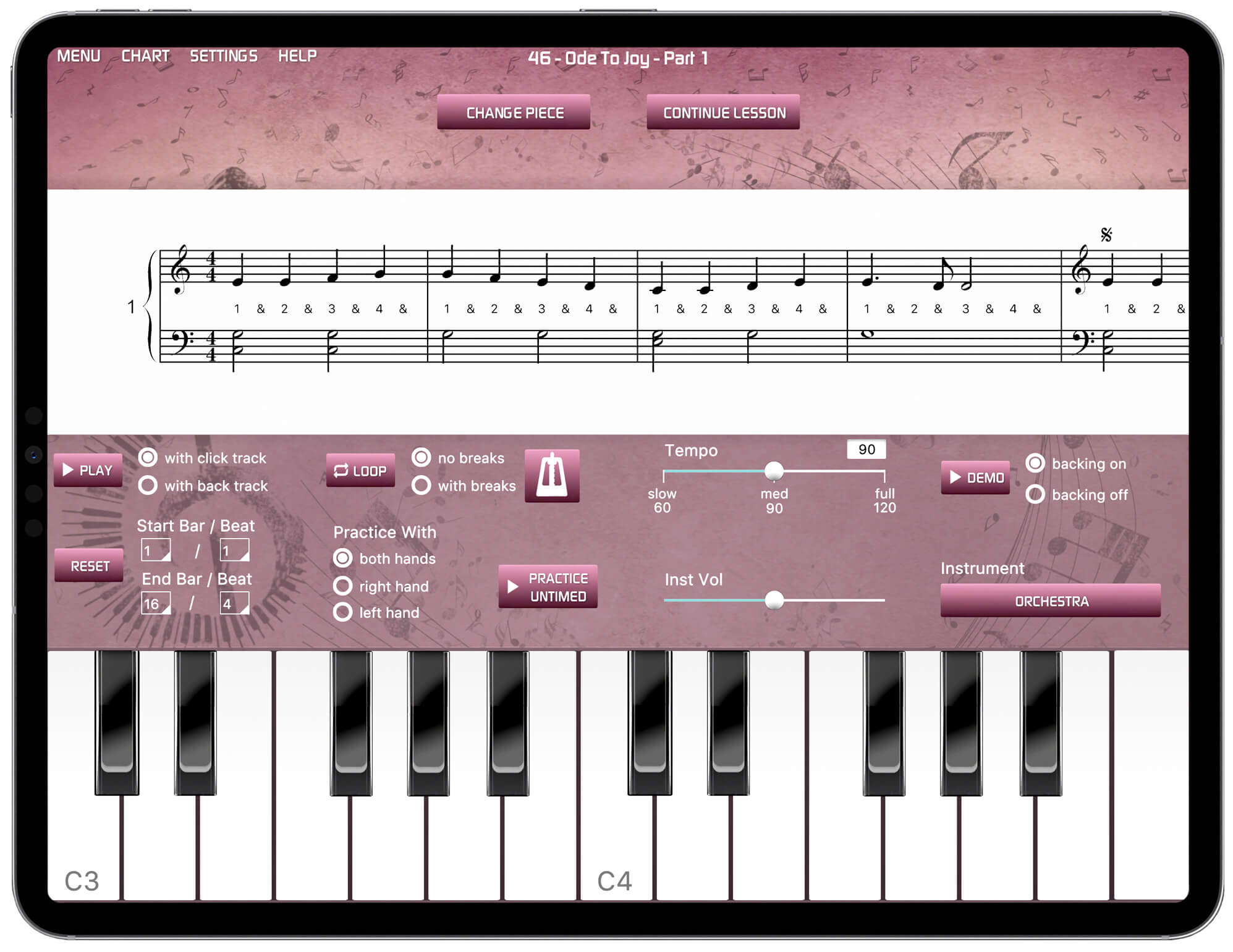
The online piano interface included within the Musiah app.
Looking For An Online Piano?
Don't let the lack of a physical instrument stop you from starting your musical journey. While we always recommend a physical MIDI keyboard for the best experience, Musiah includes two built-in solutions that allow you to begin learning immediately:
- Online Piano (On Screen Keyboard): An interface that you play by tapping the keys on your touchscreen or by clicking with a mouse. This is also often referred to as a touchscreen piano or virtual piano.
- Computer-Keyboard Piano: A specialized tool for PC and Mac users that transforms your typing keyboard into a musical instrument.
Can You Learn Using An Online Piano?
Absolutely. Musiah is a highly effective piano learning app that provides these built-in tools so you can start reading sheet music and playing songs even before your physical keyboard arrives. With our AI piano teacher, you can master the basics of the Musiah Method using just your existing hardware.
Musiah is free to try for 14 days. This trial includes full access to all lessons as well as our built-in online piano and computer piano tools.
Should I Eventually Upgrade To A MIDI Keyboard?
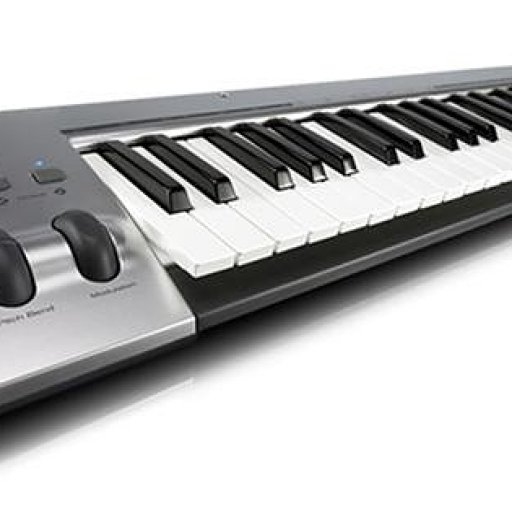
To truly "turbo-charge" your progress, we recommend using a physical MIDI keyboard with at least 49 keys. A real instrument provides the tactile feedback necessary for developing correct technique. However, as a temporary measure, our on-screen and computer piano options are a perfectly valid way to experience our supportive AI instruction.
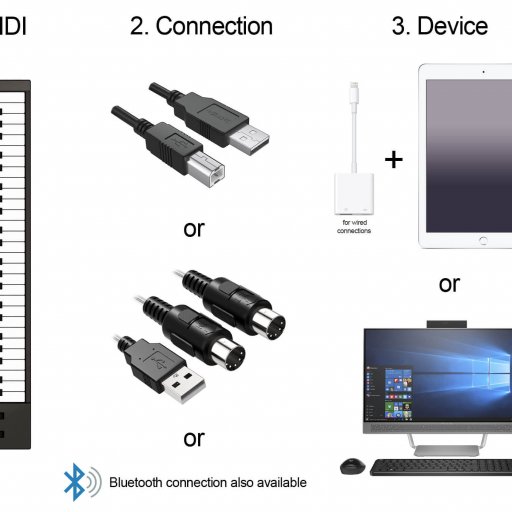
When you are ready to purchase your first instrument, you can find our full MIDI Keyboard Requirements here.
How To Use The Musiah On Screen Keyboard
The On Screen Keyboard allows you to play notes by clicking or tapping. This is exceptionally effective on an iPad or a touchscreen computer. While you can use a mouse to click the keys on a standard monitor, it is primarily intended for touch-based interactions.
Opening The On Screen Keyboard In The Lesson Area
In the Lesson Area (single stave view), the On Screen Keyboard icon is located on the control bar. Tapping this icon reveals the keys on your screen.
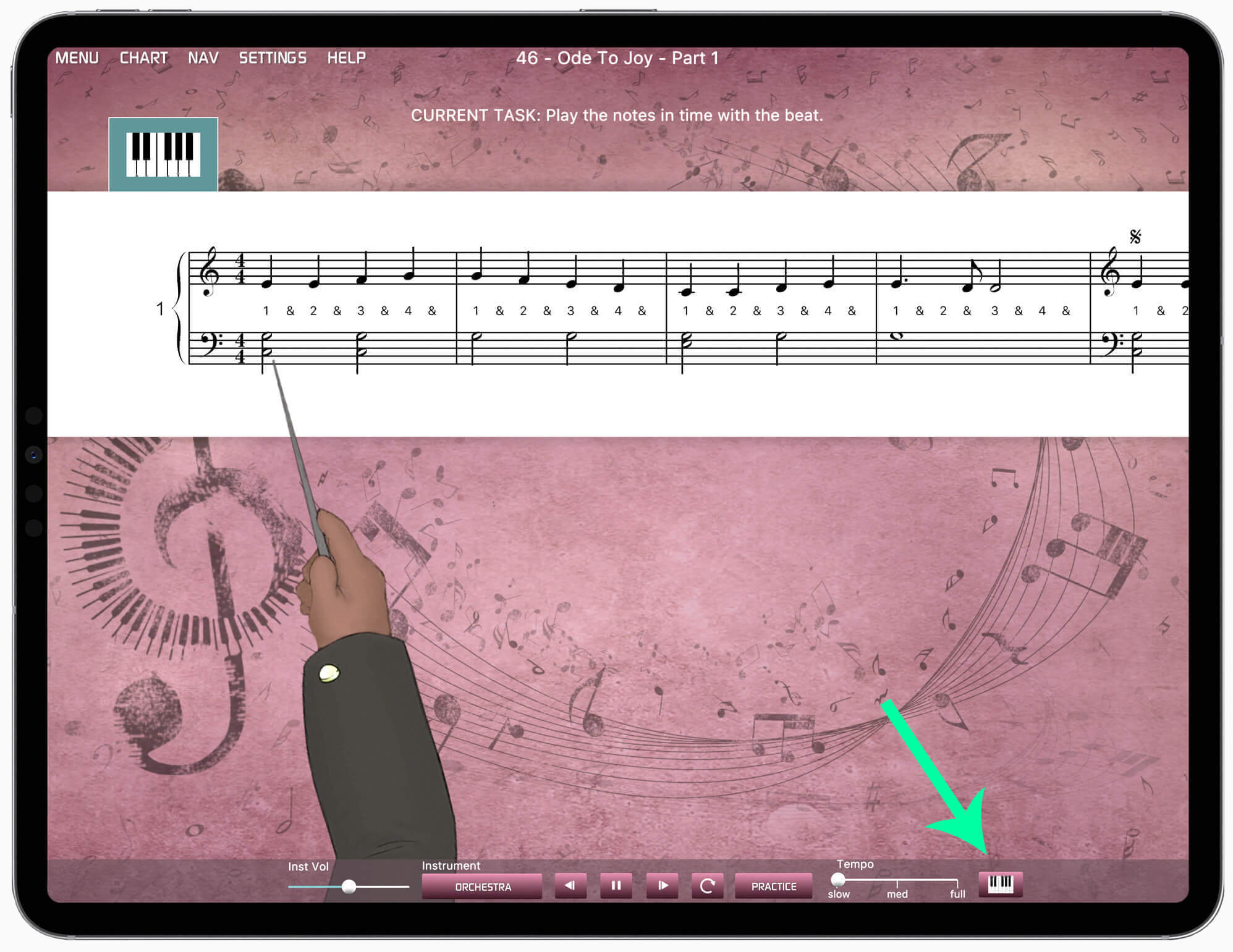
Tap the icon shown above to reveal the on-screen keys.
Using The On Screen Keyboard In The Practice Area
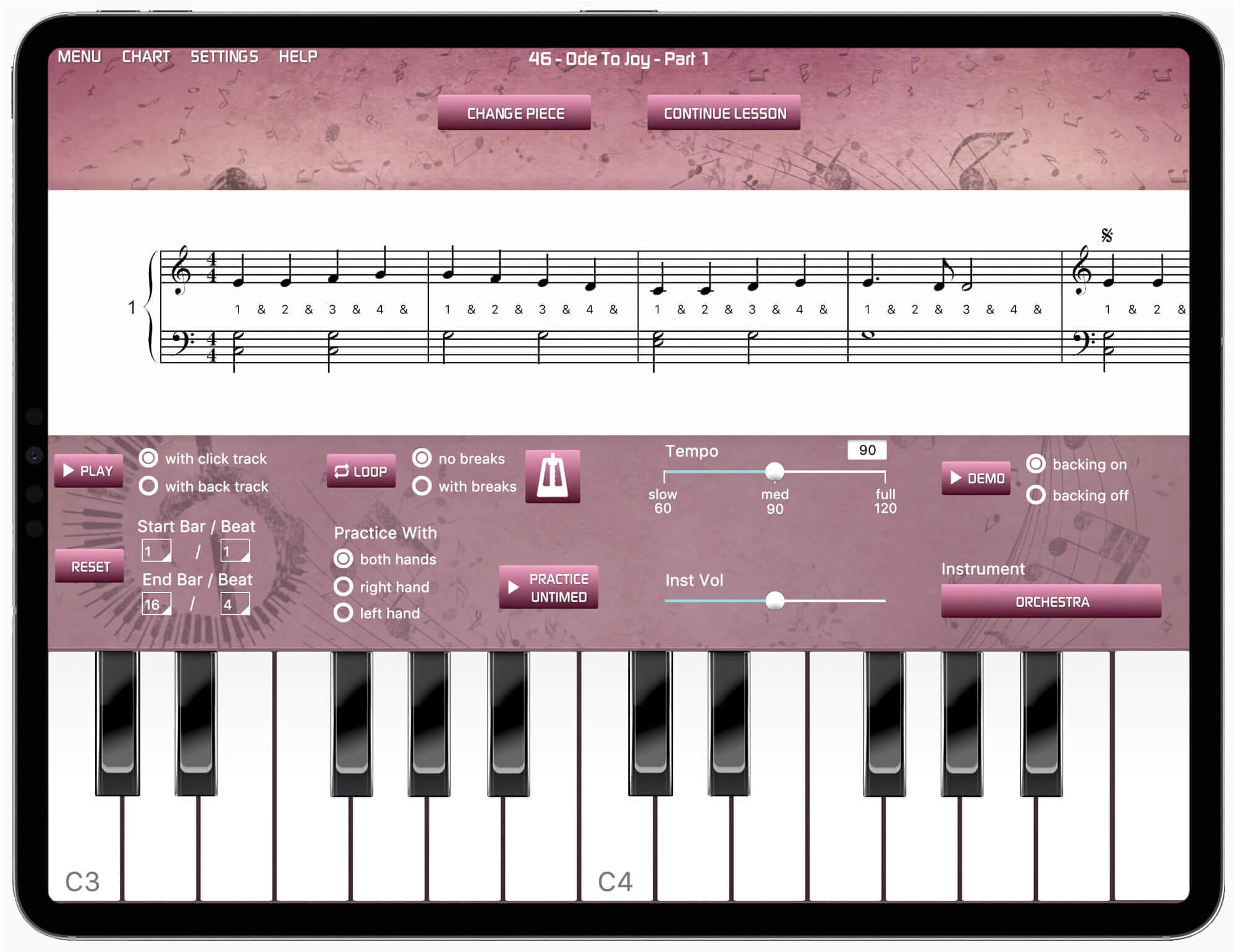
In the Practice Area, the keyboard is automatically displayed at the bottom of the screen in single stave view (landscape mode). Note that this feature is not available in full-page portrait view.
How To Use The Musiah Computer-Keyboard Piano
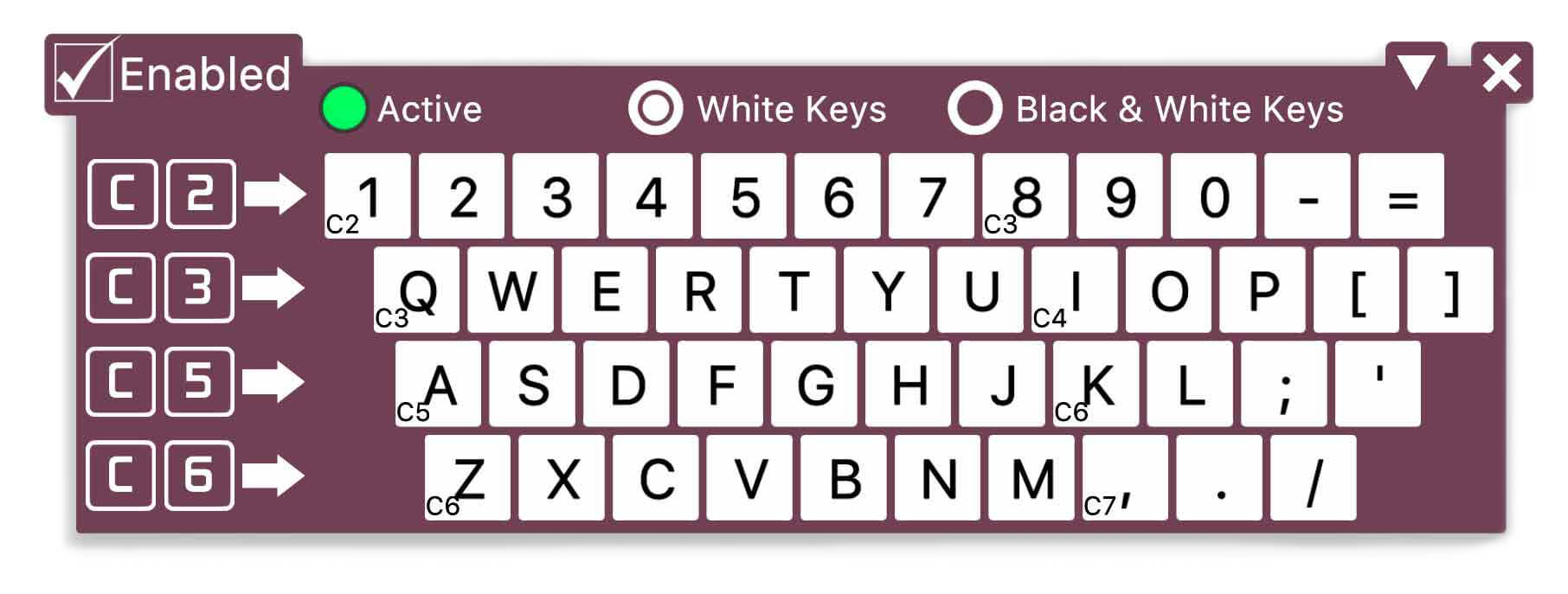
This feature enables you to "type" your piano notes. To open it, navigate to View and select Computer Piano within the app. Ensure the "Enabled" checkbox is checked to begin playing.
Advanced Features Of The Computer Piano
- Active Status: The keyboard will only produce sound when the green "Active" light is on. In modules where a mouse or touch response is required, the keyboard will temporarily deactivate.
- Layout Options: Choose between "White Keys" for beginners or "Black & White Keys" for advanced songs containing sharps and flats.
- Customization: The keyboard is draggable and resizable (the triangle makes the keyboard bigger or smaller), and the note range can be customized for each row of your computer keys.
- Hidng the Computer Piano: You can close the computer piano by clicking the 'X' and it will still remain enabled. You just won't be able to see it until you once again click 'View', then 'Computer Piano'.
Default Hand Positions For Typing Piano Notes
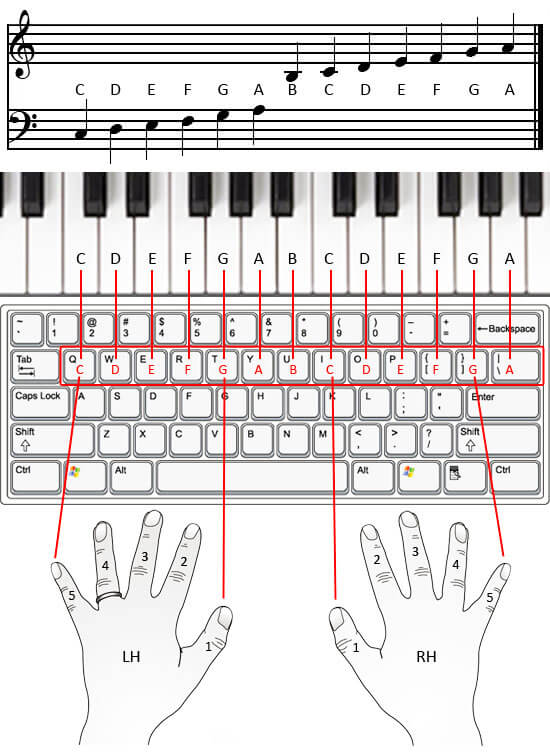
Use this hand placement to play early lessons without moving your hands.
Begin Your Free 14-Day Trial
Experience our AI teacher and start learning piano today—no instrument required. There is no risk and no obligation to continue beyond your trial. Master the basics of piano from the comfort of your own home with our supportive AI instruction.
👉 Try Musiah Free For 14 DaysReady to upgrade to a real instrument? See our MIDI Keyboard Guide.